Contents
Before you can access the tenant portal, you complete a short 3-step sign-up: Terms & Conditions → Your Details → Review & Sign Contract. The landlord then reviews your application and, if approved, emails your login credentials.
- 1Open your browser and go to jc-apartments.org, then click "Apply as Tenant".
- 2Step 1 — Terms & Conditions: read the rental terms, tick the box to agree, and click "Continue to Your Details".
- 3Step 2 — Your Details: fill in your name, email, phone, current address and employment details, and upload a clear photo of your government-issued ID. Click "Continue to Contract".
- 4Step 3 — Review & Sign: read the full lease agreement. You can switch language between English, Filipino and Bisaya using the buttons at the top.
- 5Tick the three confirmation boxes, then click "Sign & Submit Contract to Landlord".
- 6You'll see a confirmation screen and receive an email. The landlord reviews and notifies you of the decision (typically 1–3 business days).
Once the landlord approves your application, you will receive an email with your temporary login credentials. Use these to log in to the tenant portal for the first time.
- 1Check your email inbox for a message from JC Apartments with the subject "Welcome to JC Apartments — Your Apartment Account is Ready".
- 2Note your email address (username) and temporary password from the email.
- 3Go to jc-apartments.org/tenant-login.html
- 4Enter your email address in the Email / Username field.
- 5Enter the temporary password from your email in the Password field.
- 6Click "Log In". You will be prompted to set a new password immediately.
After your first login, the portal will automatically redirect you to the password change screen. You must set a personal password before you can access any other features.
- 1On the password change screen, enter your temporary password in the "Current Password" field.
- 2Type your desired new password in the "New Password" field. Use at least 8 characters including a mix of letters and numbers.
- 3Re-enter the same new password in "Confirm New Password".
- 4Click "Set New Password". You will be redirected to your dashboard.
After logging in, you land on your personal dashboard. Here you can see your tenancy summary, outstanding bills, recent payment history, and quick links to all portal features.
Click on any bill to open the full invoice. You can view a breakdown of charges and download the bill as a PDF for your records.
- 1From the dashboard, click on any bill in the list to open the full invoice view.
- 2The invoice shows your billing period, meter readings, usage, rate, and the total amount due.
- 3To save or print, click the "Export PDF" button at the top of the invoice. The file will download automatically — no print dialog will appear.
- 4The PDF file is named by your bill number and billing period (e.g. ELECTRICITY-ACC-0001-2026-05.pdf).
| Description | Amount |
|---|---|
| Prev Reading: 1,828 kWh | — |
| Curr Reading: 2,057 kWh | — |
| Usage: 229 kWh × ₱13.00/kWh | ₱2,977.00 |
You can pay your bills through the portal using GCash or Bank Transfer. Bills are due 5 days after the bill date (typically the 18th of each month).
- 1On your dashboard, click the "Pay" or "View & Pay" button on an unpaid bill.
- 2Select your payment method: GCash or Bank Transfer.
- 3GCash: Send the exact amount to +63 994 389 4651 (Account: Jocelyn Ott). Use your bill number as the message/note.
- 4Bank Transfer: Account Name: Jocelyn Ott, Account No: 9959351918. Your bill will show as Pending until the landlord confirms receipt.
- 5Enter the reference number from your GCash or bank receipt in the reference field.
- 6Click "Confirm Payment". GCash payments are confirmed instantly; bank transfers may take 1–2 business days.
You are required to submit your electricity and water meter readings on or before your monthly deadline — the 13th for most tenants (the Meter Readings tab in your portal shows your exact date). This is how your monthly bill is calculated. If you miss the deadline, an estimated bill is issued automatically the following day.
- 1From your dashboard, click the "Meter Readings" tab.
- 2Select the billing period (month/year) from the dropdown.
- 3Enter your electricity and water meter readings in the number fields.
- 4Tap the "📷 Tap to take photo or choose from gallery" box. Take a clear photo of your meter display showing the current reading. This step is mandatory.
- 5A preview of your photo will appear. If the photo is unclear, tap ✕ to remove it and take another.
- 6Click "Submit Reading". Your bill will be generated automatically and a confirmation message will appear.
You don't need the App Store or Play Store — the tenant portal installs straight from your web browser, free of charge. Once installed, JC Apartments gets its own icon on your home screen, opens full screen like a normal app, and can send you push notifications about bills and reminders.
- 1Open the Chrome browser on your phone (the round red-yellow-green-blue circle icon).
- 2In the address bar at the top, type jc-apartments.org and tap Enter (Go).
- 3Tap the ⋮ three dots in the top-right corner of Chrome.
- 4In the menu that opens, tap "Add to Home screen" (on some phones it says "Install app").
- 5Tap "Install" (or "Add") to confirm. The JC Apartments icon now appears on your home screen — tap it any time to open the portal like a regular app.
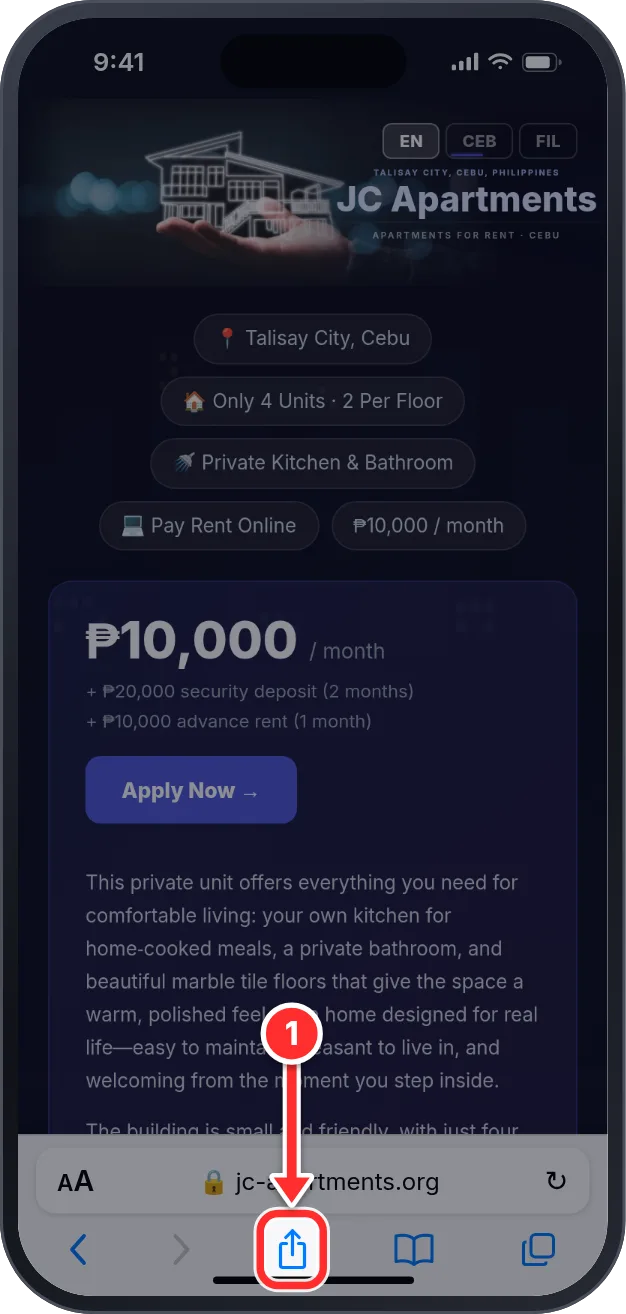
- 1Open the Safari browser (the blue compass icon). On iPhone this only works in Safari — not in Chrome.
- 2In the address bar, type jc-apartments.org and tap Go.
- 3Tap the Share button — the square with an arrow pointing up (⬆️) — at the bottom-center of the screen.
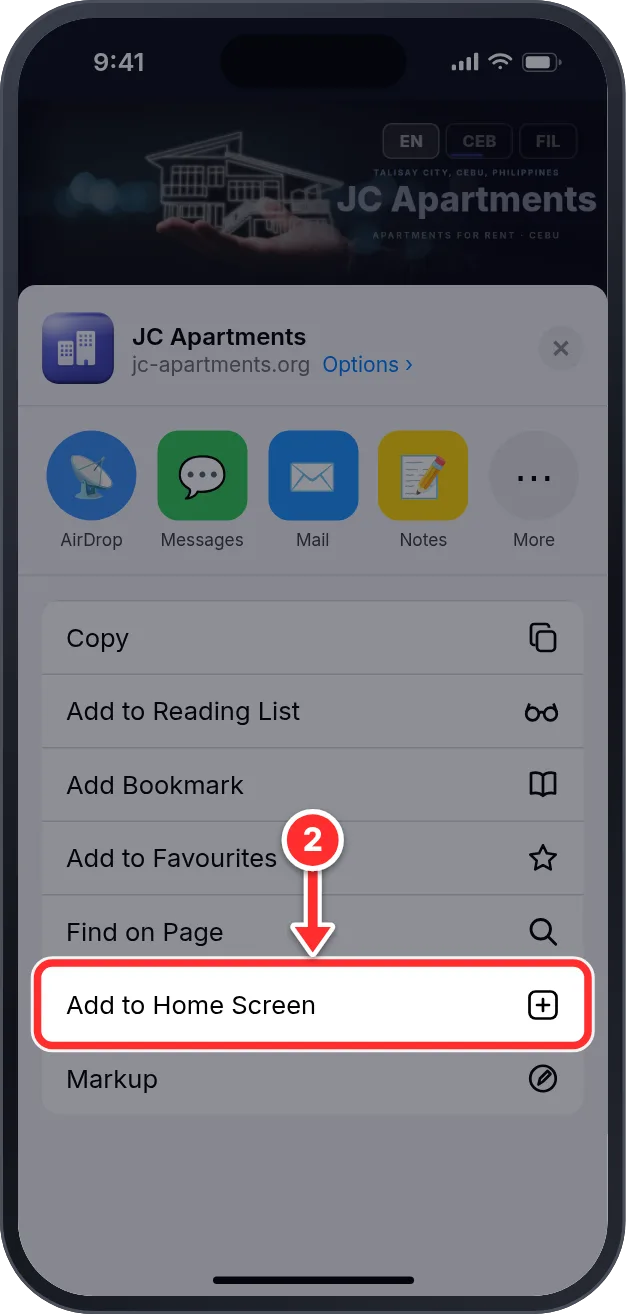
- 4Scroll down the list of options and tap "Add to Home Screen" (the ➕ icon).
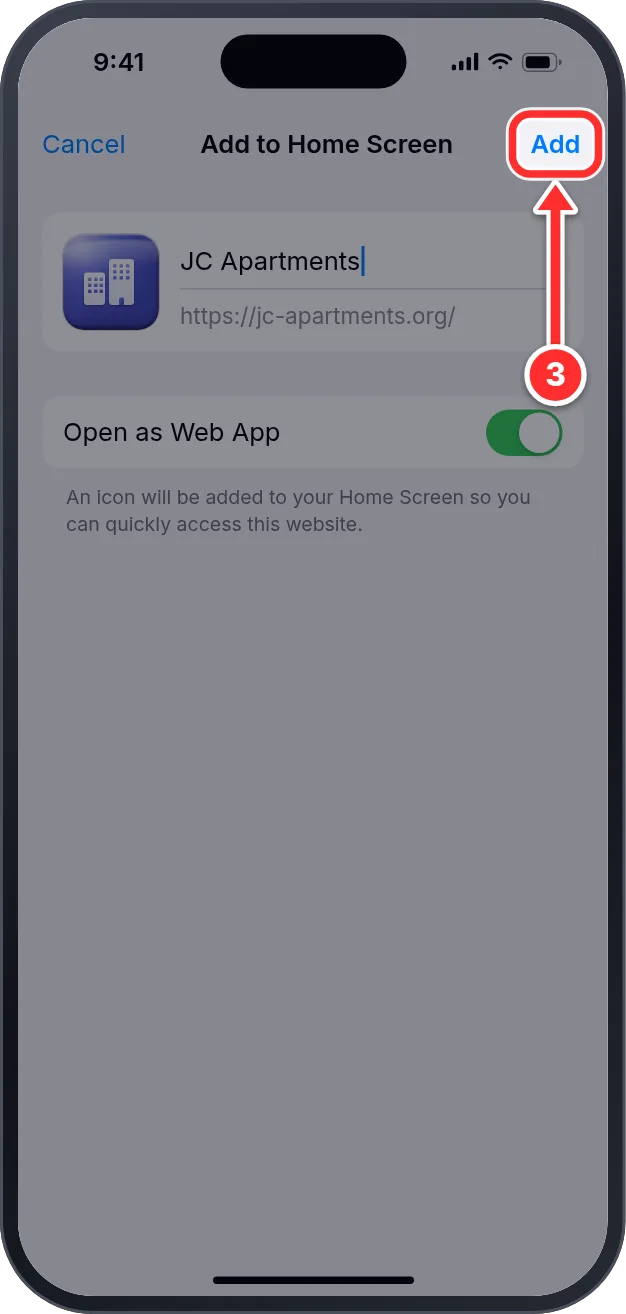
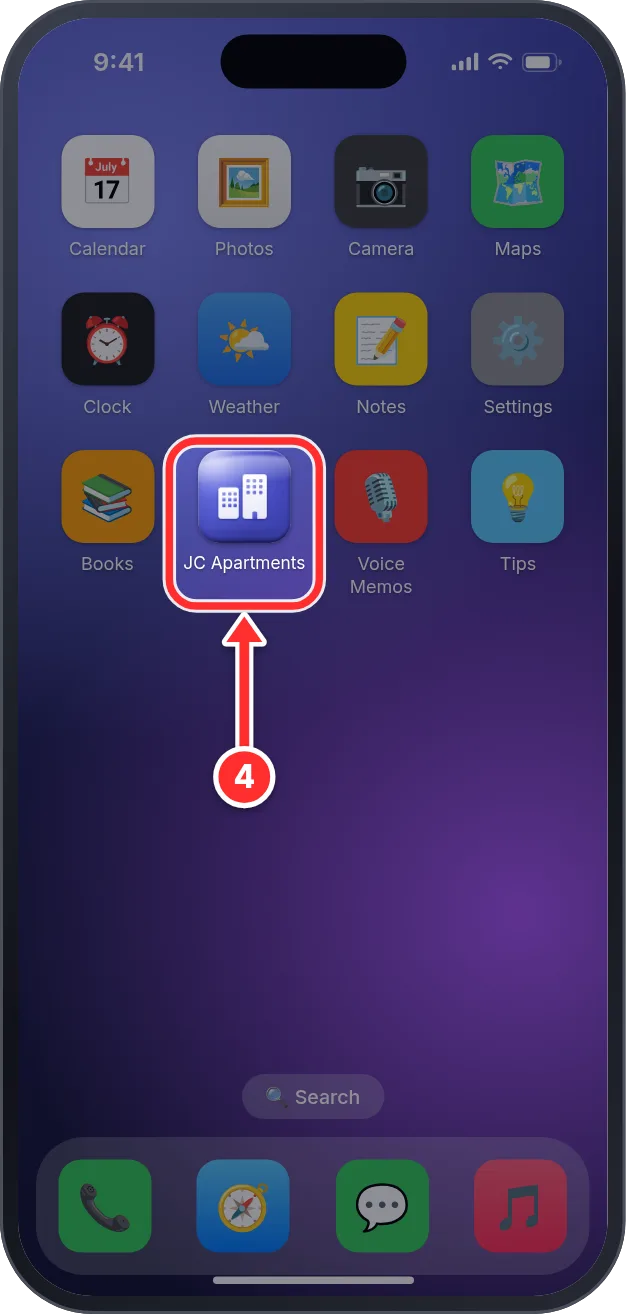
- 5Tap "Add" at the top-right. The JC Apartments icon now appears on your home screen.
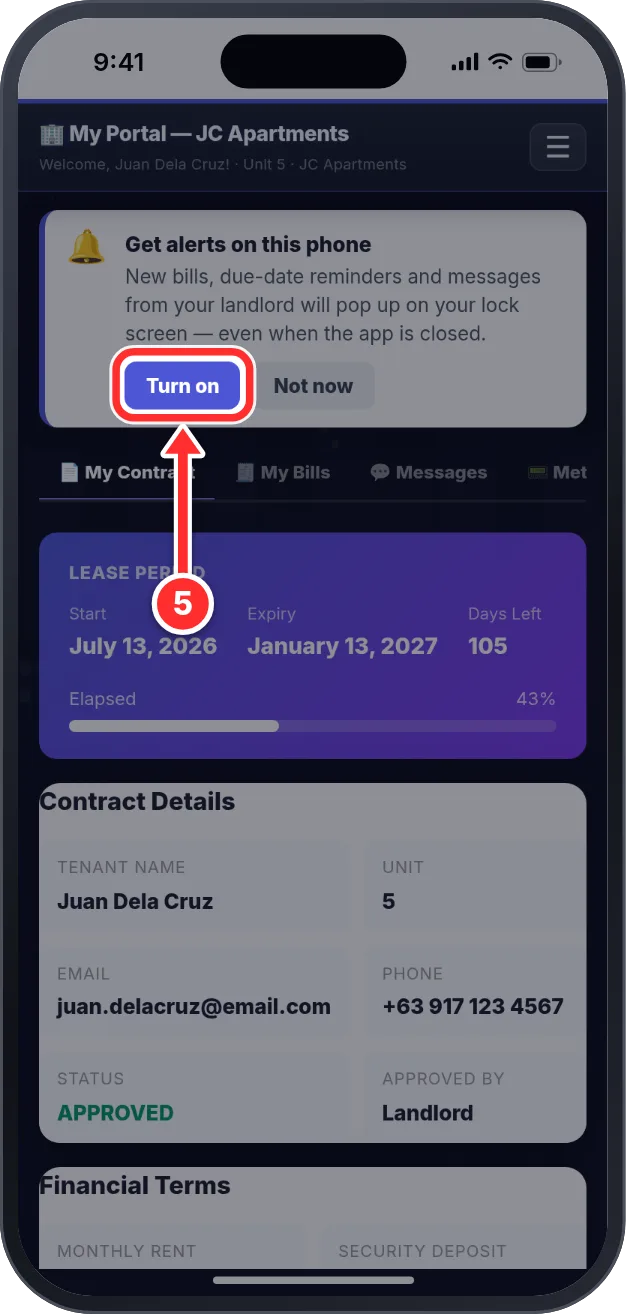
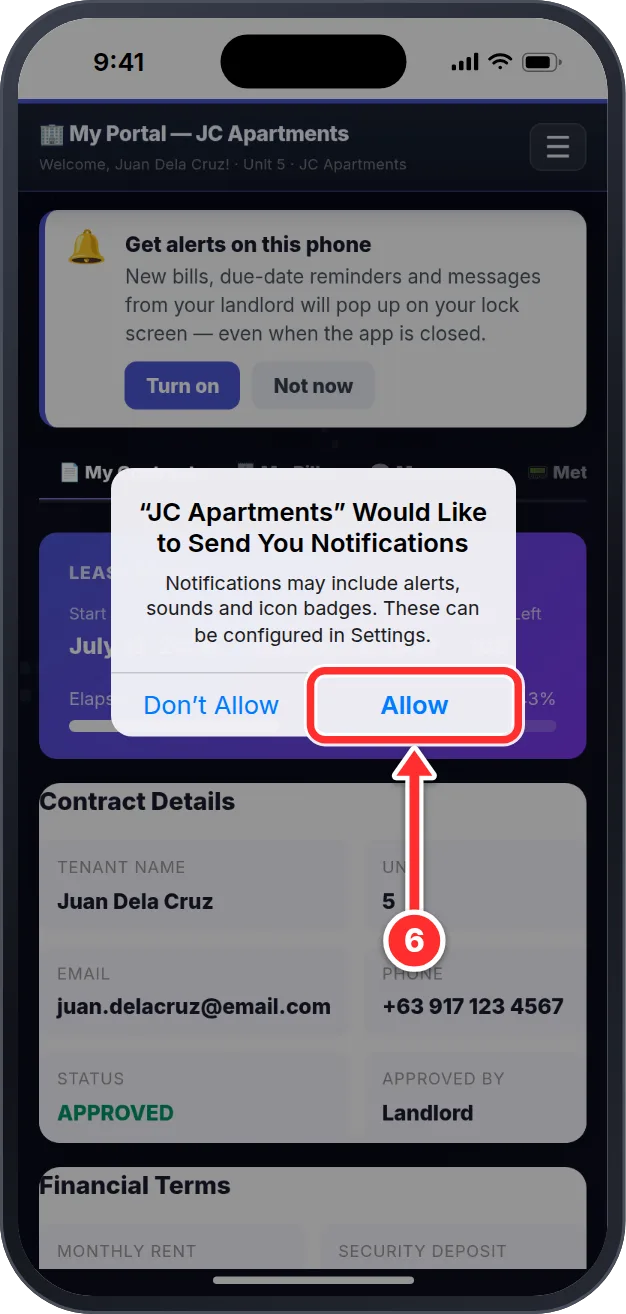
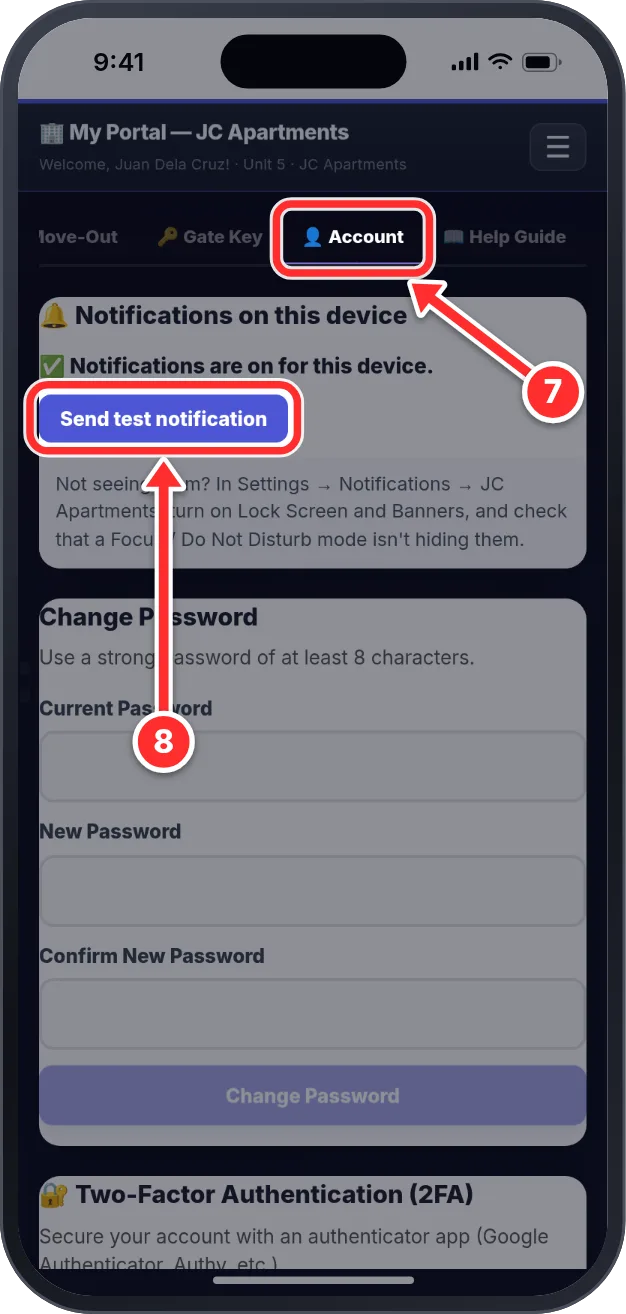
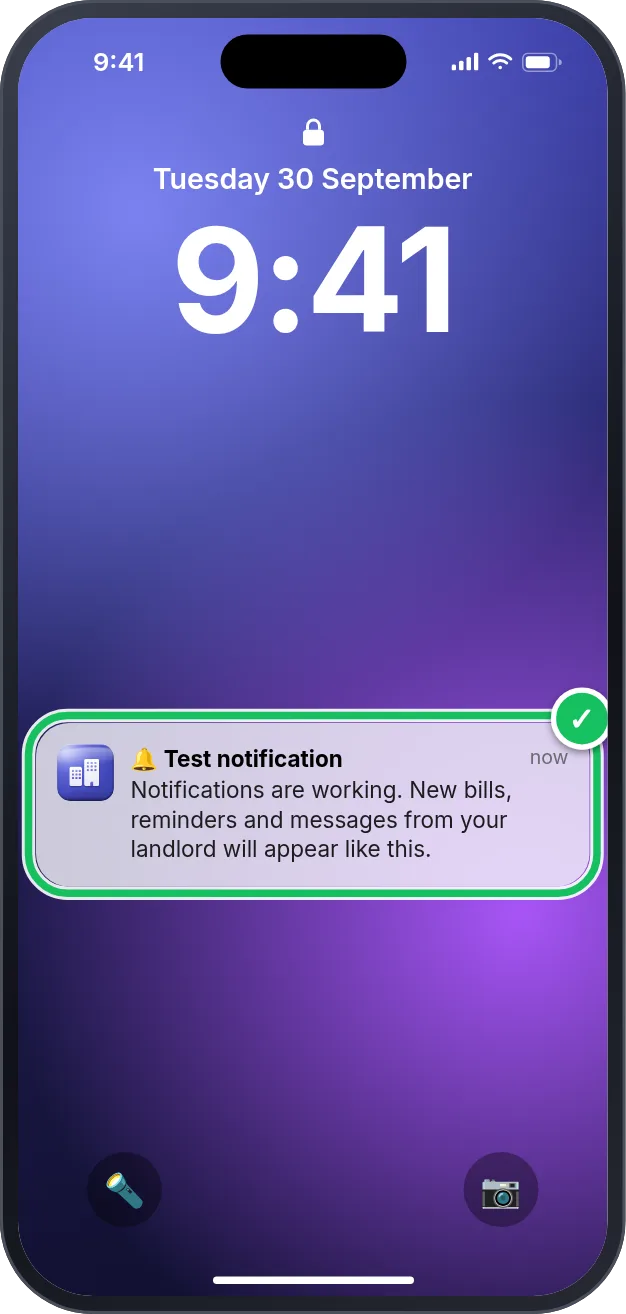
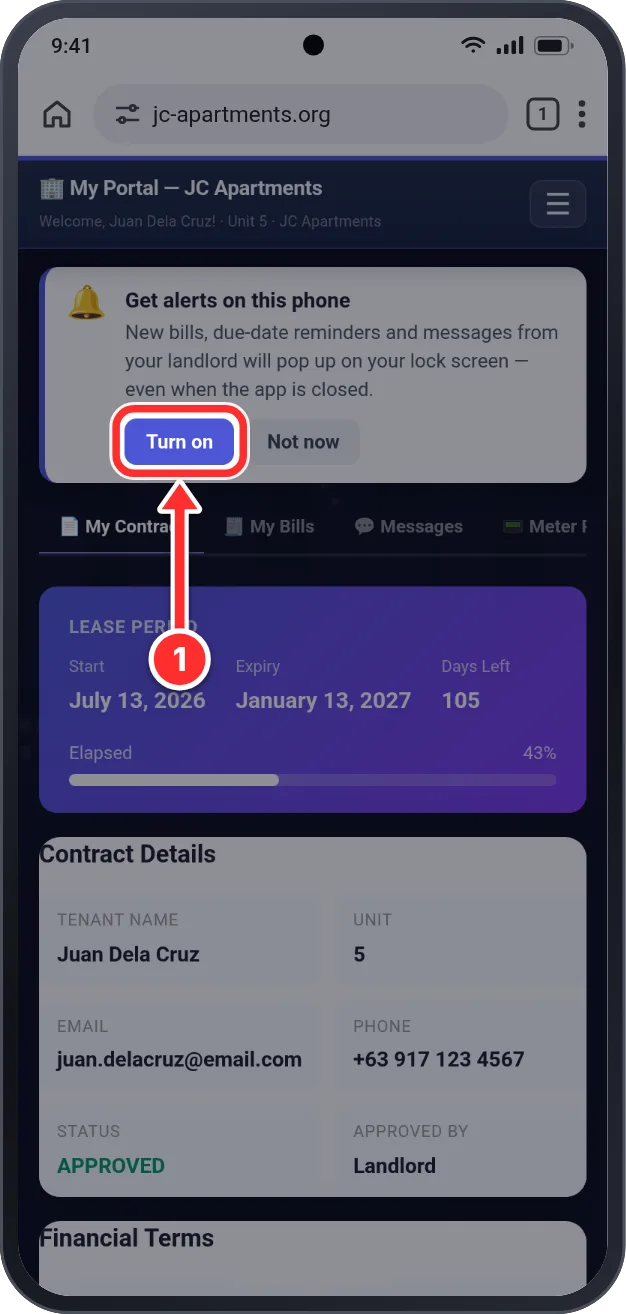
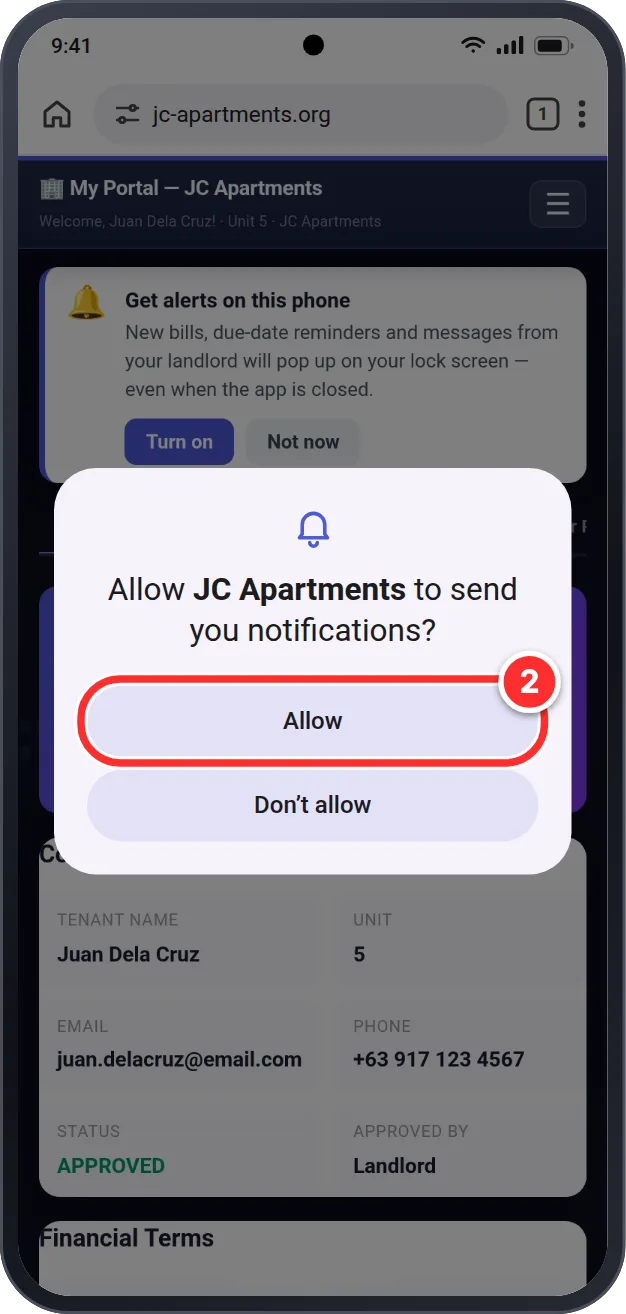
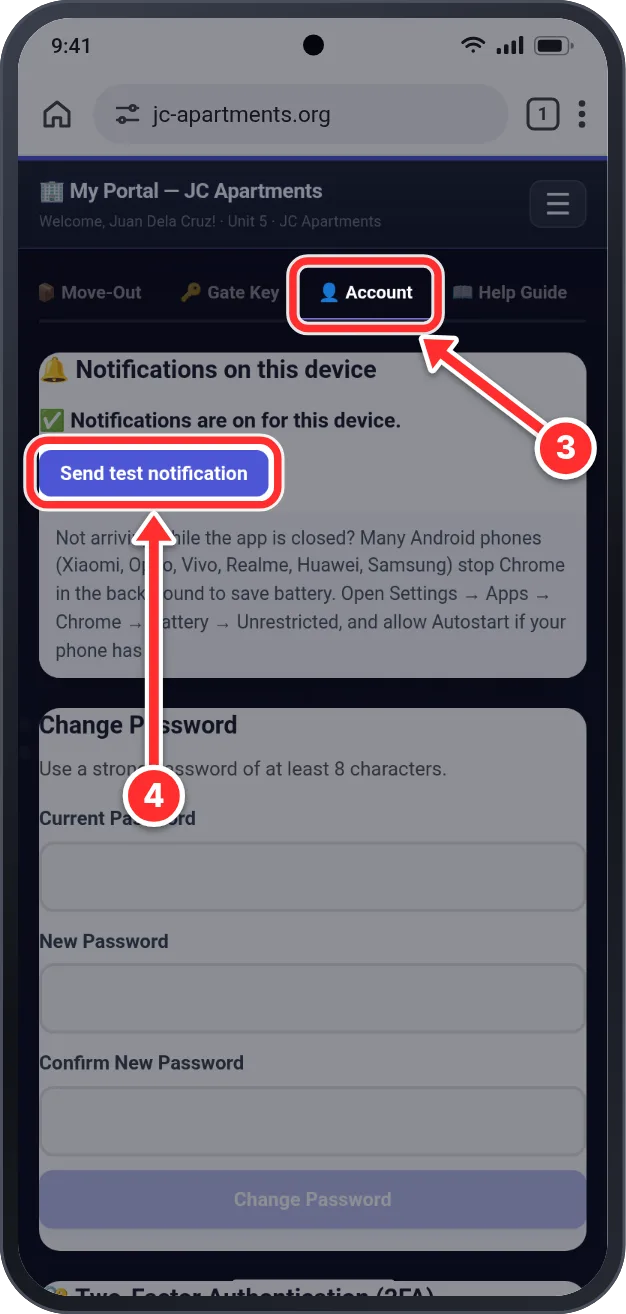
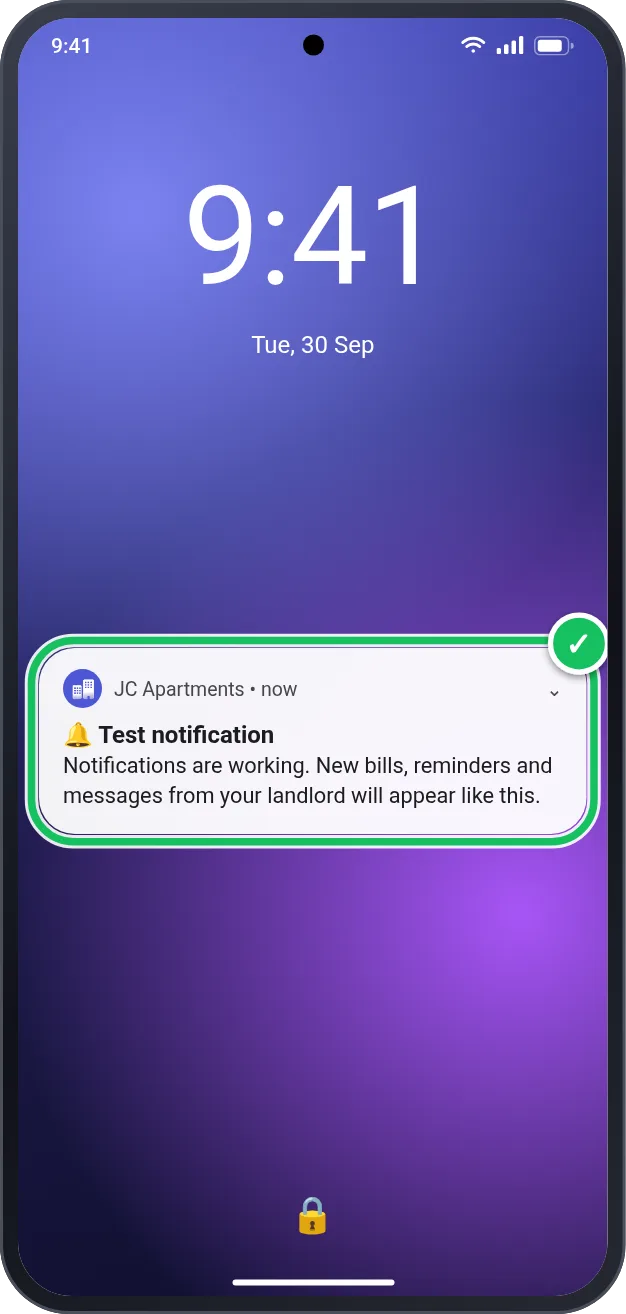
Get new bills, reminders and messages from your landlord on your lock screen. Follow the pictures for your phone — tap what the red circle points to.
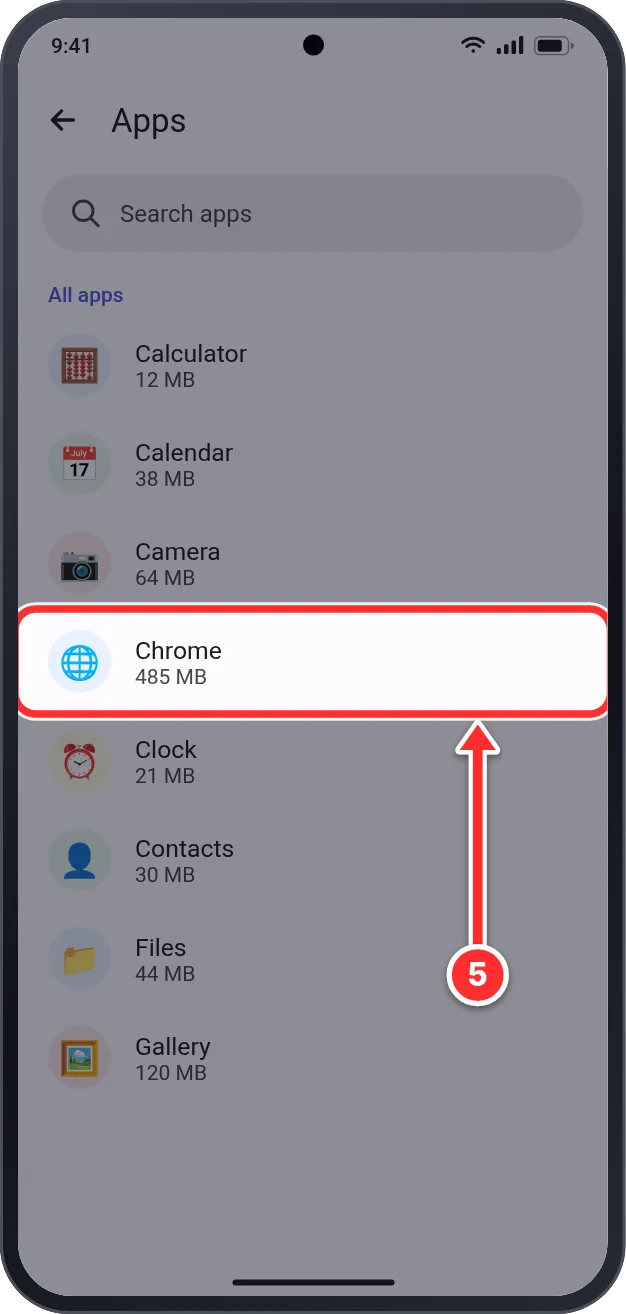
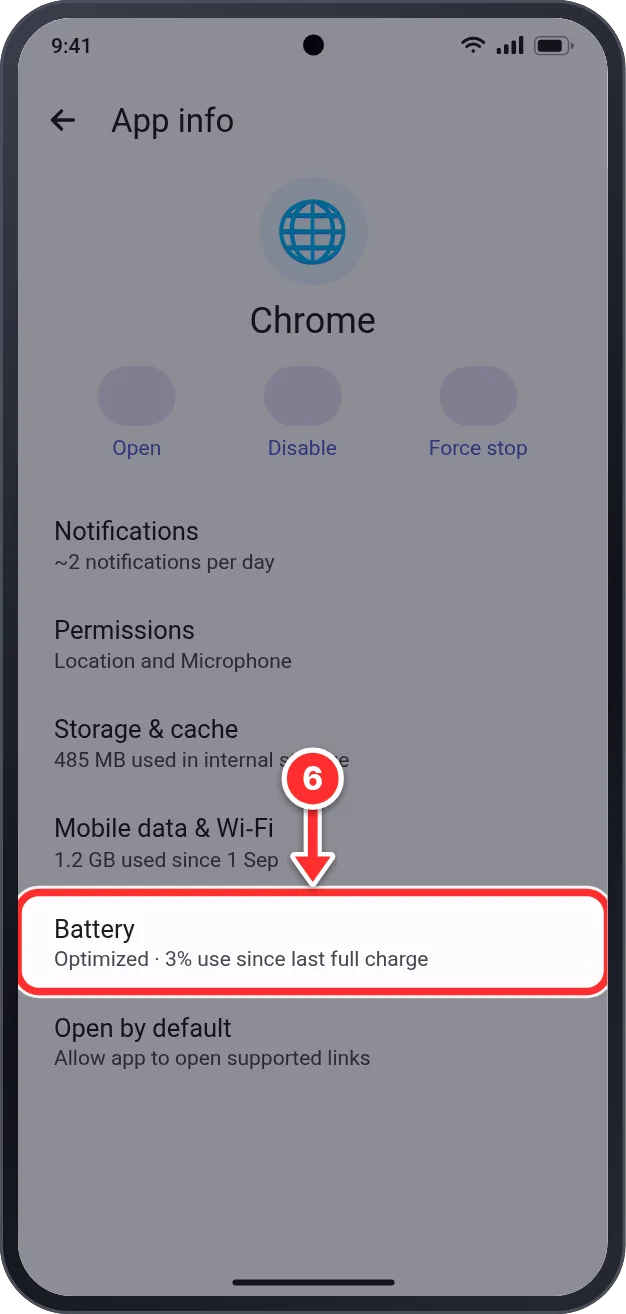
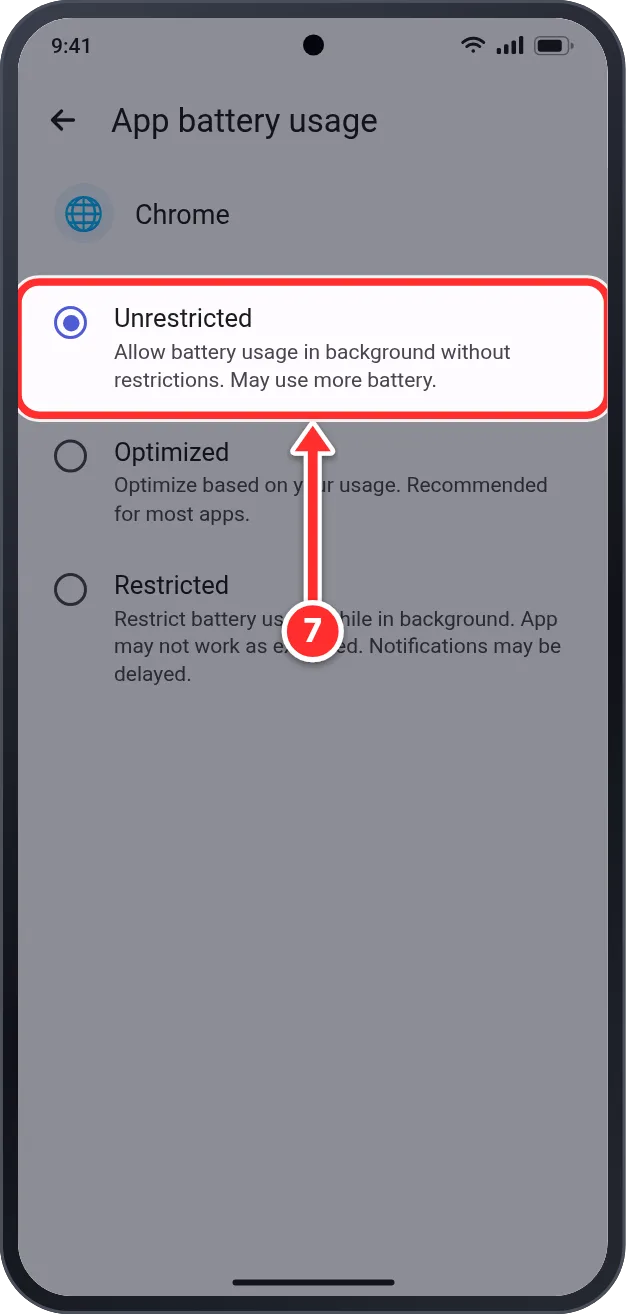
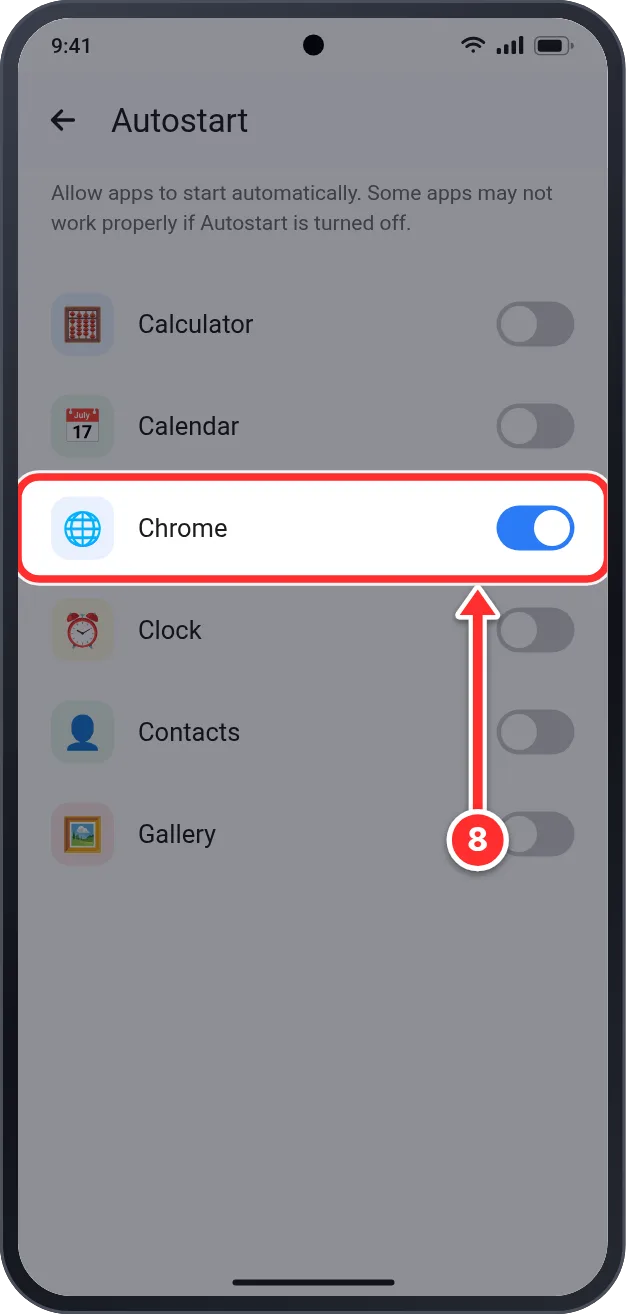
When you plan to leave your unit, submit a move-out request through the portal. Your lease requires at least 60 days notice. The landlord reviews your request, prepares a final settlement (your security deposit minus any unpaid bills and damages), and any refund is returned within 30 days. You will receive an email at every stage.
- 1Log in to your tenant portal and tap the "📦 Move-Out" tab in the top menu.
- 2Read the "60-Day Notice Required" information box carefully.
- 3Tap the "Intended Move-Out Date" field and pick the date you plan to leave.
- 4Type your reason for moving out in the "Reason" box (e.g. relocating for work).
- 5⚠️ If your date is less than 60 days away or before your lease ends, a yellow Security Deposit Forfeiture Warning appears — under your contract your deposit will not be refunded. To continue anyway, tick the "I understand and accept" box.
- 6Tap "Submit Move-Out Request". The status changes to "Move-Out Requested" while the landlord reviews it.
- 7Changed your mind? Tap "✕ Cancel Move-Out Request" (available while the request is pending or approved) — you stay in your unit and your lease continues as normal.
- 8Once approved, you receive an email and the status shows "Move-Out Approved". Settle any unpaid bills and clean the unit — return it to the state you received it in to avoid deductions.
- 9The landlord prepares your Final Settlement: the portal shows your security deposit, unpaid bills, any damage deductions, and the result — "Net Refund to You" or "Balance You Owe".
- 10When everything is paid or refunded, the status becomes "Move-Out Settled" — you're done!
Per your lease agreement, you must give at least 60 days written notice before vacating. All outstanding bills must be settled before departure. Your security deposit will be returned within 30 days, less any deductions.
You are giving less than 60 days notice. Under your contract, this forfeits your security deposit.
🧾 Estimated bill (EST) if missed: 14th of month
💳 Payment due by: 5 days after the bill date (typically the 18th)
📦 Move-out notice: 60 days before your leaving date
👤 Name: Jocelyn Ott
📝 Note: Your bill number
"Forgot password?" — a reset link will be sent to your registered email.
For assistance, contact your landlord directly.